
How to activate a CAREDESK Account
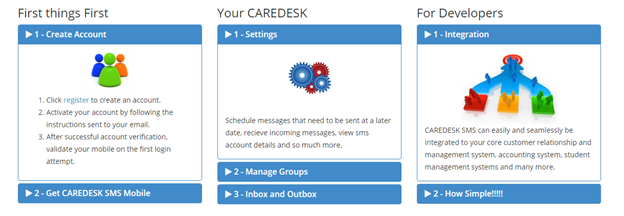
1. Visit the website ( http://www.theserviceline.co.ke ) to register
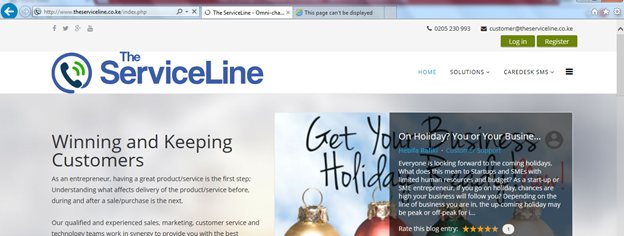
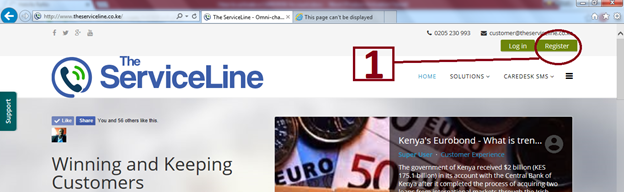
2. Click on the register button appearing on the top right corner of the page
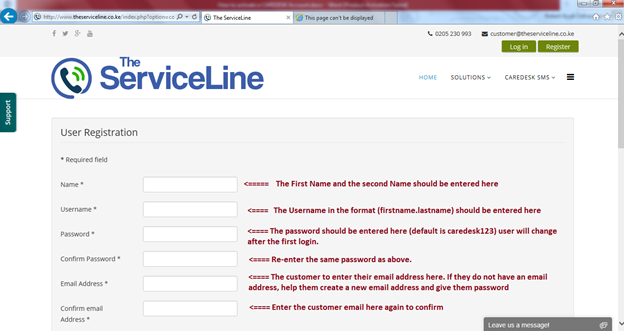
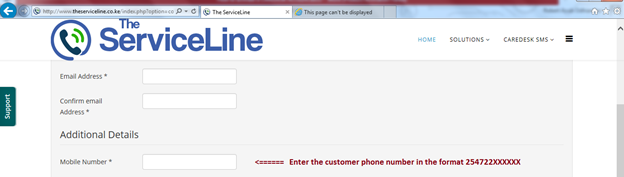
3. Fill in the fields in the form that appears. The first section being the User Registration details:
4. The second section being the Additional Details sections (Mobile Phone Number)
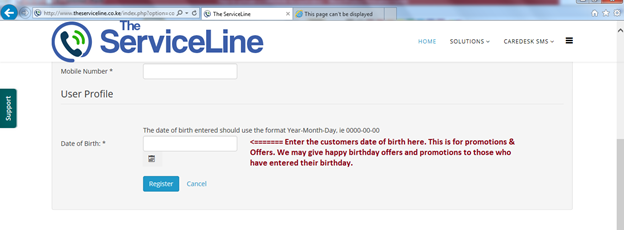
5. The Third Section being the User profile section (Date of Birth)
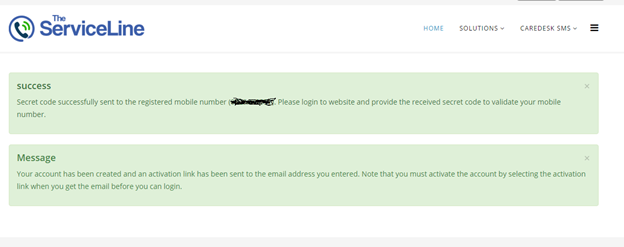
--> The Success message will appear on the window below:
6. Check customer’s email inbox for an email sent by “The ServiceLine Business Directory”

Or in SPAM Box
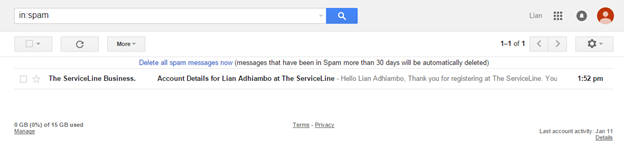
7. Open the email to check for a link sent for activation
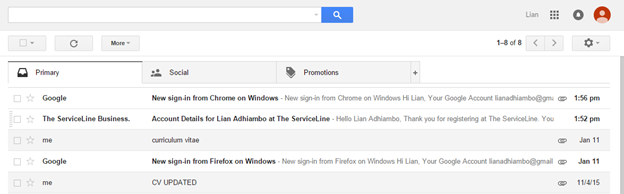
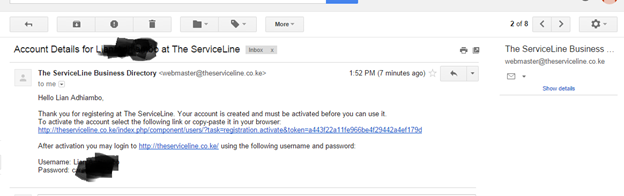
8. Click on the link to activate the customer account. You will get a message that the account has been activated successfully.

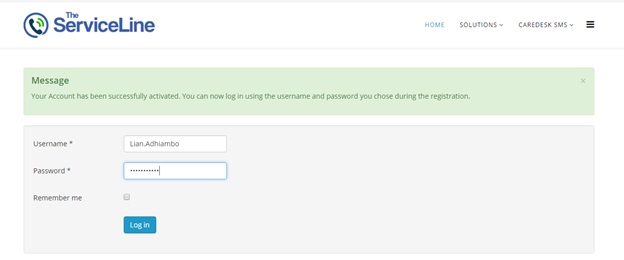
9. Click on login button appearing on the top right corder of the website page (http://www.theserviceline.co.ke )

10. From the login window enter the username and password that was sent to your inbox
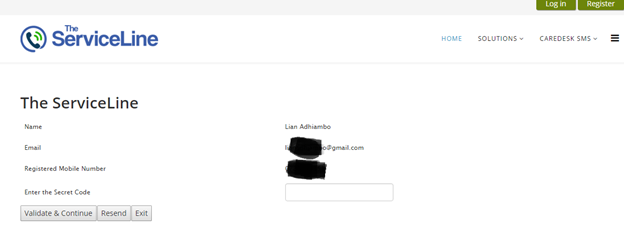
11. When you click on the Login Button, the system will prompt you to enter the Phone verification code sent to customer mobile phone. Enter the Code and click on Verify Button
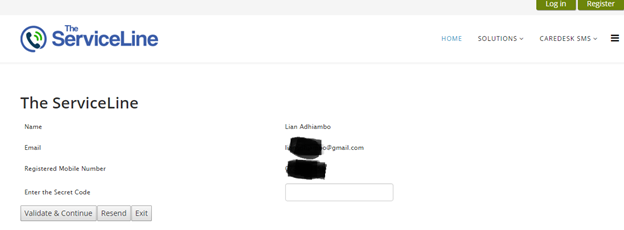
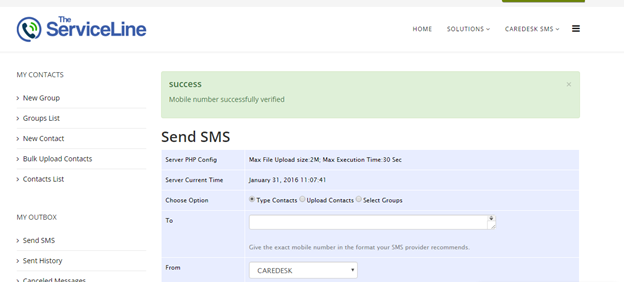
12. You will get a success message and it will automatically redirect you to your home page.
13. Navigate to the CAREDESK Workbench menu as indicated in the diagram below:
14. Clicking on CAREDESK Workbench will lead you to the home page of CAREDESK SMS where a customer can:
a. Create a new group
b. View list of groups
c. Add a new contact
d. Bulk upload contacts
e. View contact list
f. Send SMS
g. View sent messages
h. View cancelled SMS Messages
i. View Scheduled SMS Messages
j. Send Personalized Messages
k. View Received Messages
l. View Keywords List
m. View Account Settings such as account balances
n. Input PIN Number for airtime vouchers
o. Add a new sender
p. View Sender list
q. Add Templates
r. View SMS Templates
s. Access the CAREDESK Shop to buy CAREDESK SMS Credits
t. View invoices
15. Send a test SMS Message by clicking on the Send SMS menu appearing on the left side-bar on the screen
16. Upon clicking the Send SMS link, you will need to enter fill the form that appears next. The sent message will be sent by CAREDESK SMS and the recipient will see the message as having come from CAREDESK
a. Enter the phone number in the ‘To’ Field (Preferably the customers phone number so that they get to see how the message comes about)
b. Select an SMS Template if you have one. However, if none has been defined, then ignore.
c. Type the message
d. Click on send button.
17. If this is successful. Then it means activation is successful and the account can be loaded with CAREDESK SMS Credits. Help the customer purchase CAREDESK SMS Credits by guiding them through the process of purchasing the credits.
a. Click on the CAREDESK Shop on the lower left corner of the page
b. Help the customer purchase SMS Credits for 50 people which is KES 52 Shillings:
c. Click on the details below wateja50
d. Select the currency (currently it is in Kenya Shillings and USD)
e. Select your payment gateway (It can be through lipa na mpesa / Paybill number) or pesapal
f. Click on Buy Now button
g. Follow the instructions from the screen
4�Ya�